
TL;DR:
- Preparing your technology and environment before a telehealth appointment helps ensure a smooth and effective visit.
- Clear communication of symptoms and verifying platform privacy support better diagnoses and safeguard your personal health information.
If you’ve ever stared at a telehealth login screen feeling unsure of what to click next, you’re not alone. Learning how to navigate telehealth platforms is something most patients figure out by trial and error, and that process can feel stressful when you’re already dealing with a health concern. The good news is that with a little preparation and the right guidance, using telehealth services becomes second nature. This guide walks you through everything from setup to communication, so your next virtual visit feels calm, clear, and worth your time.
Table of Contents
- Key takeaways
- How to navigate telehealth platforms: setup and prerequisites
- Your step-by-step guide to a telehealth appointment
- Troubleshooting common telehealth technical issues
- Maximizing your telehealth visit for quality care
- My honest take on the telehealth learning curve
- Try Chameleonhc for your next virtual visit
- FAQ
Key takeaways
| Point | Details |
|---|---|
| Prepare your tech ahead of time | Test your camera, microphone, and internet speed before your appointment to avoid last-minute surprises. |
| Join early and complete forms | Log into the virtual waiting room 15 minutes before your visit to finish intake paperwork and confirm your setup works. |
| Communicate symptoms in detail | Describe your pain level, duration, and triggers clearly since your provider cannot perform a physical exam. |
| Verify platform privacy compliance | Confirm the platform is HIPAA-compliant before sharing any personal health information. |
| Know when to escalate | Understand telehealth limitations and recognize the signs that an in-person visit is the safer choice. |
How to navigate telehealth platforms: setup and prerequisites
The most common reason a telehealth visit goes sideways has nothing to do with the provider or the platform itself. It comes down to preparation. Getting a few basics in order before your appointment makes everything that follows much easier.
Internet speed and device requirements
Your connection quality sets the tone for the entire visit. For a stable video call, you need at least 1.5 to 5 Mbps of internet speed. Most home Wi-Fi connections easily meet this threshold, but a congested network with multiple devices streaming or gaming can pull your speed down. Run a quick speed test at fast.com before you log in. If your connection feels sluggish, move closer to your router or disconnect other devices temporarily.
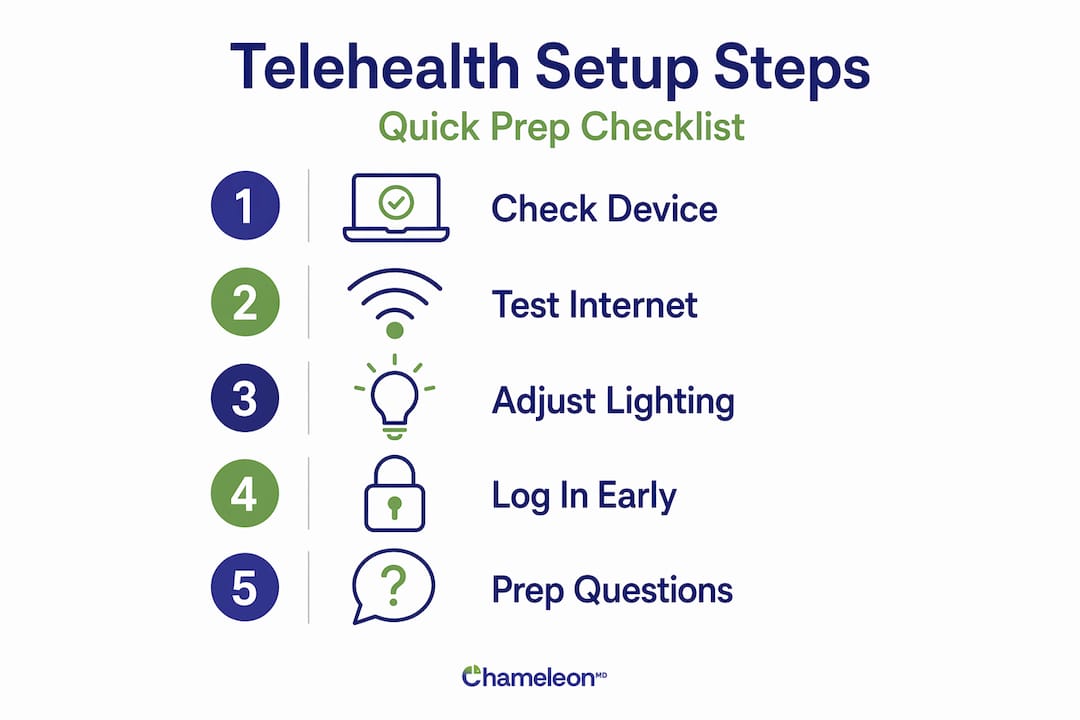
As for the device itself, you have options. A smartphone, tablet, or laptop all work well for telehealth visits. The key is making sure your front-facing camera and microphone are functional. Older devices sometimes have degraded audio quality that makes it hard for your provider to hear you clearly. If you’re using a desktop computer without a built-in camera, a basic external webcam works perfectly.
Creating the right environment
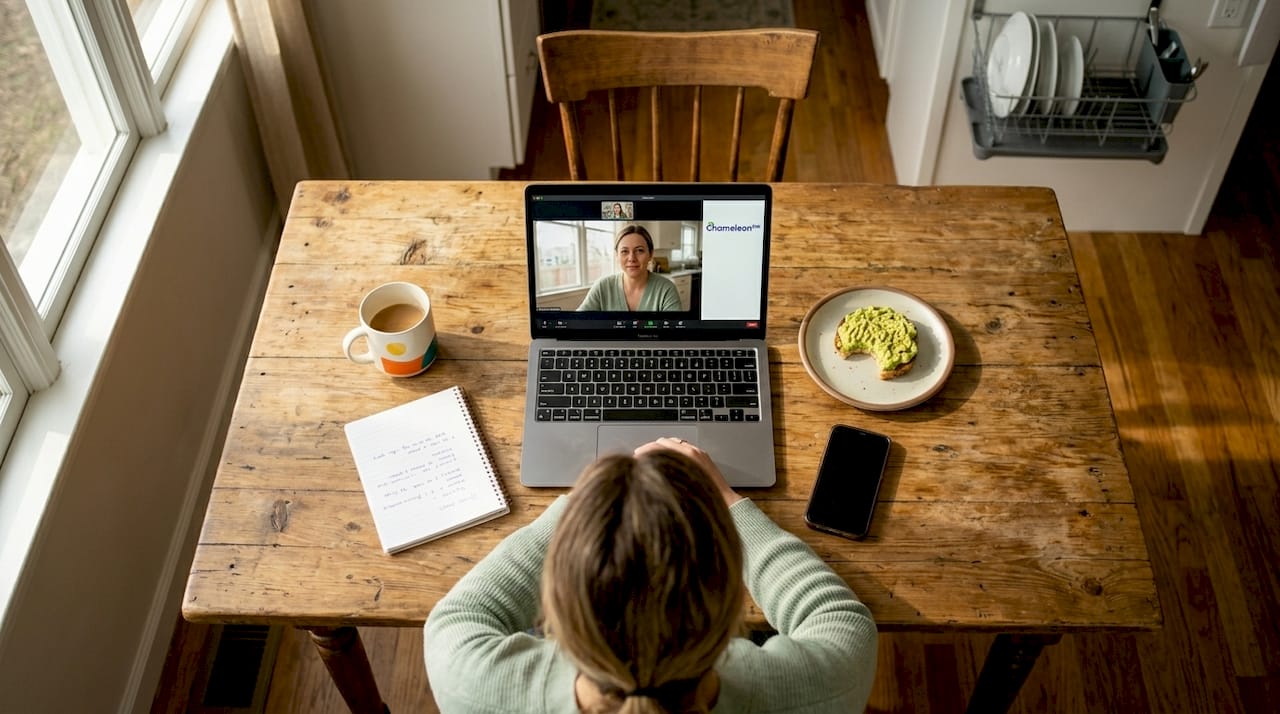
Your surroundings matter more than you might expect. Choose a quiet, private room where you won’t be interrupted and where background noise is minimal. Good lighting is also worth your attention. Natural light from a window in front of you (not behind you) works best. Overhead lighting from a single ceiling bulb can create shadows that make it harder for your provider to see your face or any visible symptoms like a rash or swelling.
A few things worth having nearby before you start:
- A list of your current medications and dosages
- Your insurance card or payment method, if applicable
- Any notes about your symptoms, including when they started and what makes them better or worse
- A pen and paper for taking notes during the visit
Pro Tip: Close unnecessary browser tabs and apps before your visit starts. This reduces strain on your device’s memory and keeps your video feed running smoothly.
Platform compliance and privacy basics
Before your first visit, take a moment to confirm that the platform you’re using handles your data responsibly. Not all telehealth platforms qualify as HIPAA-covered entities, which means some health apps and tools may not offer the same legal protections as a formal medical platform. Look for explicit HIPAA compliance language on the platform’s website or ask your provider directly before sharing any personal health information.
Your step-by-step guide to a telehealth appointment
Once you’re set up, the actual visit is more straightforward than it sounds. Here’s how to move through it confidently.
-
Log in with your credentials. Open the platform link sent by your provider (usually via email or text) and sign in. If it’s your first time, you may need to create an account. Do this the night before, not five minutes before your appointment.
-
Complete digital intake forms. Many platforms prompt you to fill out symptom questionnaires or consent forms before the provider joins. Plan to join 15 minutes early to handle these without rushing.
-
Test your camera and microphone. Most platforms include a built-in pre-call test. Use it. Confirm your video feed is clear and your microphone picks up your voice at a normal speaking volume.
-
Adjust your camera position. Sit so your face is centered in the frame with the camera at roughly eye level. Prop your phone or laptop on a stack of books if needed. Keeping your face at eye level improves the quality of the interaction and helps your provider see any visible symptoms more clearly.
-
Review and sign informed consent. Before the visit begins, you’ll typically be asked to acknowledge a digital consent form. This document should explain the platform being used, its limitations, privacy risks, and what happens if the technology fails mid-visit. Informed consent in telehealth is more detailed than a standard signature and varies by state, so read it before clicking through.
-
Use the chat function if needed. If your audio cuts out or you need to share a detail your provider missed, most platforms include a text chat sidebar. It’s a useful backup, not a replacement for speaking.
-
End the call properly. When your visit wraps up, confirm next steps verbally before disconnecting. Ask about follow-up instructions, prescriptions, or whether you’ll receive a visit summary in your patient portal.
Pro Tip: Keep the platform’s tech support number or chat option open in a separate browser tab before your visit starts. If something breaks, you won’t lose time searching for help.
Troubleshooting common telehealth technical issues
Technical glitches happen, even with solid preparation. Knowing how to handle them quickly keeps your appointment on track.
The most reassuring thing to know is that most failures have simple causes. Common connection problems stem from captive Wi-Fi portals (think hotel or coffee shop networks that require you to click “accept” before the internet works) or browser permissions that were never granted. Before you assume the platform is broken, check these first.
Here’s a quick reference for the most frequent issues:
- Video not loading: Refresh the page, check your browser permissions (camera and microphone must be set to “allow”), and try switching browsers. Chrome and Firefox tend to perform best for telehealth.
- Audio echoing or cutting out: Use headphones with a built-in microphone. They reduce echo significantly and tend to pick up speech more clearly than laptop speakers.
- Call drops mid-appointment: Reconnect immediately using the same link. Your provider will typically wait a few minutes. If you can’t reconnect, call the clinic’s front desk to let them know and reschedule if needed.
- Platform won’t load: Clear your browser cache, disable any VPN you may be running, and try again. Some platforms have trouble working through VPN connections.
When your telehealth video fails to connect, the most common culprits are captive network portals and blocked browser permissions, not the platform itself. Check these before anything else.
Pro Tip: Do a full test run the day before your visit. Open the platform link, log in, and run through the camera and microphone check. This takes five minutes and eliminates most day-of surprises.
Maximizing your telehealth visit for quality care
Getting the most out of a telehealth appointment comes down to how actively you participate. Your provider cannot examine you physically, which means the information you provide becomes the primary diagnostic tool.

Describe your symptoms specifically: rate your pain on a scale of one to ten, note when symptoms started, identify what makes them worse or better, and mention any changes over time. Vague descriptions like “I just feel off” make it genuinely harder for your provider to help you. Specific ones like “I’ve had a sore throat for three days, it’s a seven out of ten, and it’s worse in the morning with no improvement from over-the-counter pain relievers” give your provider something concrete to work with.
A few other things worth keeping in mind for a productive visit:
- Ask for a visit summary. Many platforms send a post-visit note through a patient portal. If yours doesn’t, ask your provider to email you the key points, including any prescription details or follow-up steps.
- Know your rights around record access. You have the right to request copies of your visit records. Ask how to do this before you disconnect.
- Understand telehealth’s limits. Not every condition can be evaluated remotely. Learn more about the pros and cons of virtual care to set realistic expectations. If your provider recommends in-person follow-up, take that seriously.
- Verify your privacy environment. Make sure no one else can overhear your conversation. Use a private room rather than a shared space, and confirm that providers encrypt telehealth data both in transit and at rest.
Clear communication builds trust during telehealth visits and leads to better outcomes. The more intentional you are about how you show up to the appointment, the more value you get out of it. Think of your telehealth provider as a partner in the process, not just someone reading from a checklist.
My honest take on the telehealth learning curve
I’ve helped a lot of people get comfortable with telehealth, and I’ll be straightforward with you: the first visit almost always feels slightly awkward. There’s a self-consciousness to talking to a camera that fades quickly, but it’s real at first. Don’t let that stop you.
What I’ve found is that the anxiety around telehealth is almost always about the unknown. Patients who struggle most are the ones who log in cold with no preparation and no idea what to expect. The ones who do well treat it like any other appointment. They prepare. They show up early. They know what they want to say.
The uncomfortable truth about telehealth privacy is this: many patients assume all health apps are HIPAA-protected because they seem medical in nature. Not all health apps carry that protection. Verifying compliance before your first visit takes two minutes and gives you real peace of mind.
I’ve also learned that technical issues are far less scary once you’ve handled one. A dropped call is not a crisis. Reconnect, take a breath, and continue. Providers are used to it. Telehealth is not a perfect system, but for the vast majority of common health concerns, it is a genuinely convenient and effective one. You can also read more about how virtual healthcare works if you want more context before your first visit.
The best telemedicine tip I can give you is simply this: prepare like you would for any appointment, and give yourself grace when something goes wrong.
— Vector
Try Chameleonhc for your next virtual visit
If you want to put these telehealth platform tips into practice with a provider who makes the process easy, Chameleonhc is a great place to start. The platform is built specifically for patients who want same-day access to licensed providers without waiting rooms, insurance friction, or confusing portals. Whether you’re dealing with a sore throat, a sinus infection, a rash, or another common concern, Chameleonhc walks you through the visit from start to finish. You can explore virtual care plans to find an option that fits your needs, and condition-specific pages like asthma care show exactly what remote treatment looks like in practice. For first-time telehealth users, it’s a clear, calm starting point.
FAQ
What internet speed do I need for a telehealth visit?
You need at least 1.5 Mbps for basic audio and video, though 5 Mbps is recommended for a stable, high-quality connection. Run a speed test before your visit to confirm.
How early should I log in for a telehealth appointment?
Join the virtual waiting room 15 minutes early to test your technology, complete intake forms, and avoid rushing before your provider joins.
Is my health information safe on telehealth platforms?
It depends on the platform. Not all telehealth tools are HIPAA-compliant, so verify that the platform you’re using encrypts your data and qualifies as a covered entity before sharing personal health information.
What should I do if my telehealth call drops mid-visit?
Reconnect immediately using the same link your provider sent. If you can’t get back in, call the clinic’s front desk to let them know. Most providers expect occasional disconnections and will wait briefly or reschedule without issue.
How do I describe my symptoms effectively during a telehealth visit?
Be as specific as possible. Include your pain level, symptom duration, and triggers, since your provider relies entirely on the details you share to make an accurate assessment without a physical exam.